How to Stop Ads When a Shopify Product Is Out of Stock

The quick answer: protect the promise before the campaign
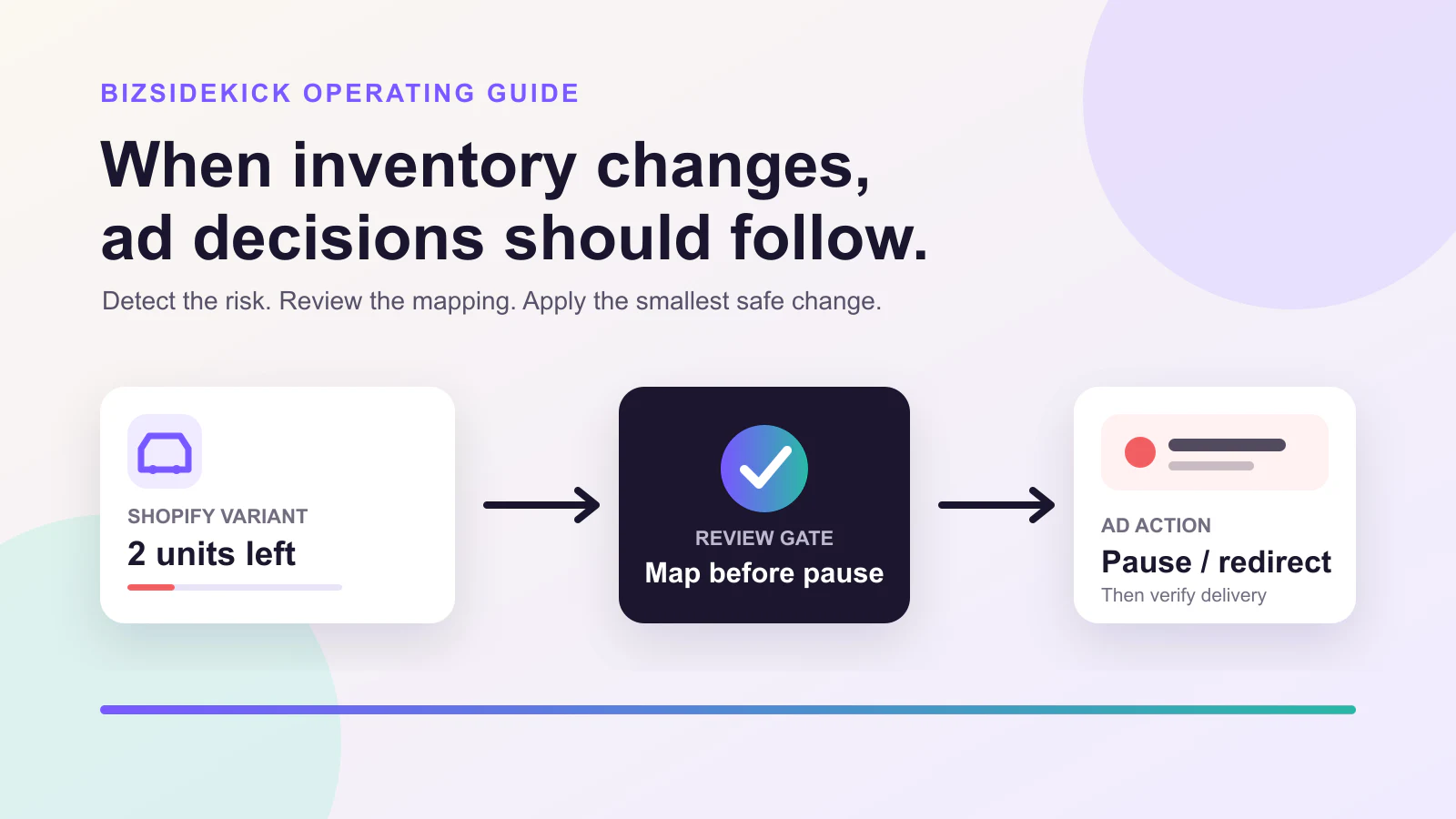
When a Shopify product sells out, do not begin with a blind campaign-wide pause. Begin by confirming the sellable variant, its replenishment path, and every live ad that sends shoppers to it.
The smallest safe response usually follows this order:
- Confirm whether the exact variant can still be purchased.
- Check whether preorder, backorder, or “continue selling when out of stock” is intentional.
- Verify that the ad is still delivering or spending.
- Map the variant to its product page, catalog item, product group, ad, and campaign.
- Choose a narrow action: exclude the item, redirect traffic, reduce spend, or pause.
- Record and review the proposed change.
- Apply it only at the verified scope.
- Confirm that delivery and spend changed as expected.
If you cannot prove which ad promotes the sold-out variant, stop at step four. A review queue is safer than pausing an entire profitable campaign because one product mapping is incomplete.
This matters because “out of stock” is not one universal state. A product with a confirmed preorder date and a clear landing-page promise needs a different response from a discontinued variant that still receives paid traffic.
Why inventory and ad delivery fall out of sync
Shopify inventory and advertising platforms describe the same product through different objects.
A Shopify product can contain several variants. Each variant can have inventory at several locations. A catalog or product feed can represent those variants as separate items. A Shopping campaign might group them by item ID, brand, label, or product type. A non-catalog Meta or Search ad might simply link to a product page without a durable item-level mapping.
The operating chain looks like this:
Shopify variant → sellable inventory → landing page →
catalog or feed item → product group / ad → campaign
A break anywhere in that chain creates uncertainty:
- The parent product is in stock, but the advertised size is sold out.
- Shopify shows zero available inventory, but the store intentionally accepts preorders.
- The landing page is unavailable, while a cached or processed product feed still shows the previous state.
- A product-feed item is out of stock, but a separate Search, social, or creator ad still links to the page.
- A campaign contains many products, so pausing the campaign would also stop healthy inventory.
- A bundle uses component inventory that is not visible from the advertised product alone.
There is no useful universal promise that every platform will synchronize within a fixed number of hours. Processing time, account setup, feed method, and ad type vary. Use current evidence from the store and channel instead of a hard-coded delay.
Define the inventory state before changing an ad
The relevant question is not simply, “Is on-hand inventory zero?” It is:
Can a shopper complete the advertised purchase under the promise currently shown on the landing page?
Check these inputs for the exact variant:
| Input | What to confirm | Why it changes the action |
|---|---|---|
| Sellable state | Can checkout accept the variant now? | Separates a real block from a reporting alert |
| Available quantity | What remains after existing commitments? | Prevents decisions based on inventory that is already spoken for |
| Incoming stock | Is quantity and arrival timing confirmed? | Supports a short bridge only when evidence is reliable |
| Continue-selling rule | Is overselling intentional? | A zero count can still represent a valid selling path |
| Customer promise | Does the page clearly say preorder, backorder, or waitlist? | Paid traffic should match the promise at checkout |
| Sales velocity | How quickly is the remaining stock moving? | Finds risk before quantity reaches zero |
| Mapping confidence | Which ads lead to this variant or page? | Determines whether an action can be narrow and safe |
Shopify's inventory reports include a days of inventory remaining measure. Shopify describes it as ending quantity divided by average units sold per day, with the sales rate based on a recent period; the report also has data-availability limits. Treat it as a decision input, not a live guarantee. Review the current definition and reporting notes in Shopify's inventory reports documentation.
For a promotion, a more useful warning is often:
days of cover < replenishment lead time + safety buffer
That rule identifies an approaching conflict while there is still time to reduce exposure. It also prevents the team from waiting until checkout is already blocked.
Choose the smallest safe action
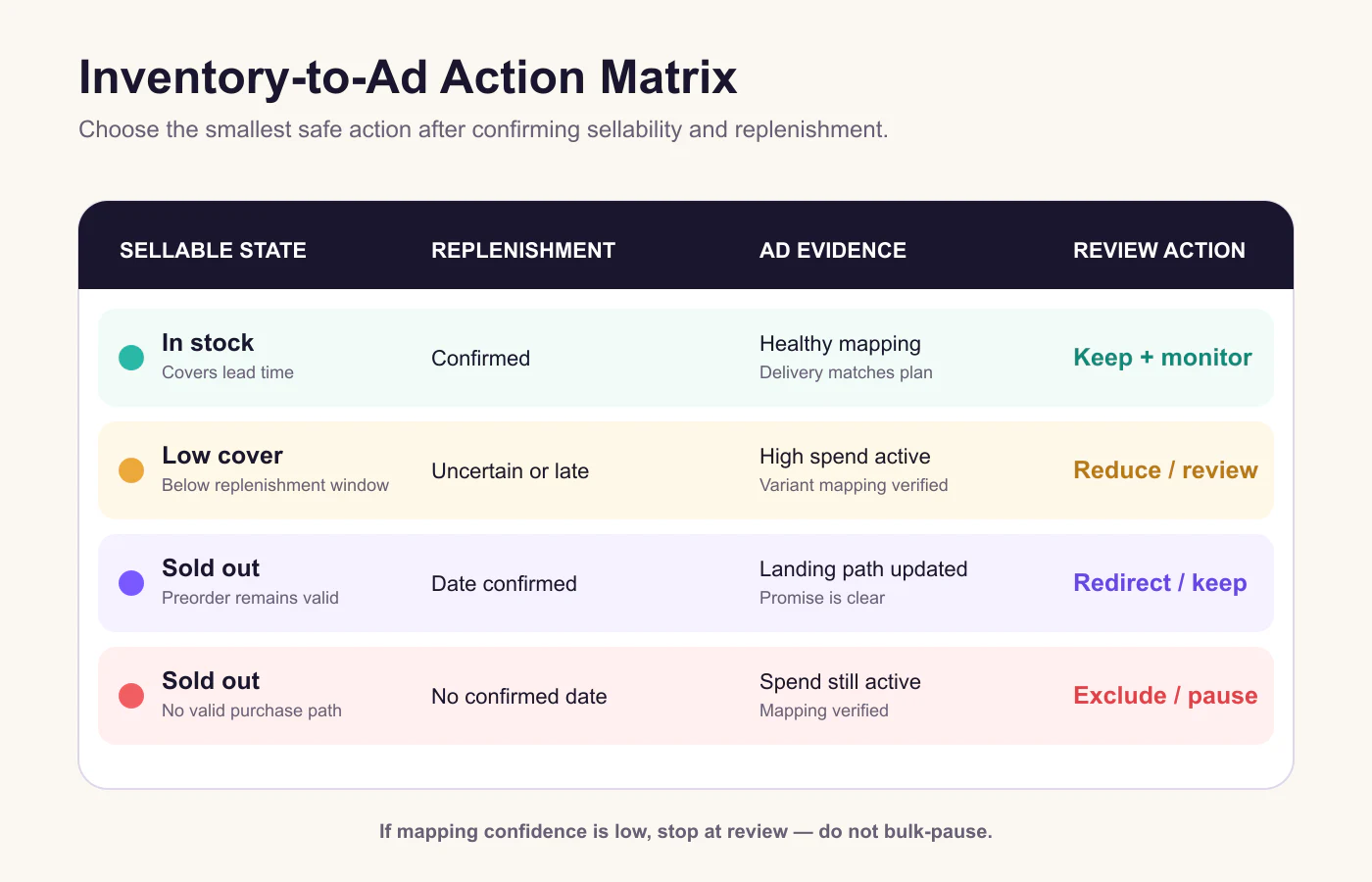
The matrix gives a starting rule, not an automatic verdict. Apply merchant-specific guardrails for margin, demand, replacement products, and customer experience.
Use inventory forecasting to catch the promotion risk earlier
Inventory forecasting is useful here when it answers one operational question: will the sellable variant remain available through the planned promotion and replenishment window? Shopify provides inventory reports with a days-of-inventory-remaining measure and also documents order forecasting for merchants who need a demand view. See Shopify inventory reports and Shopify order forecasting.
Treat either report as a planning input, not a promise. The useful forecast review adds current inventory, confirmed incoming stock, the promotion window, and a merchant-defined buffer. If those inputs are incomplete, flag the product for review rather than automatically stopping delivery.
| Forecast signal | Decision question | Safe response |
|---|---|---|
| Cover exceeds promotion and replenishment window | Can the current plan continue? | Monitor with a review date |
| Cover reaches the buffer during the promotion | Which exposure can be reduced first? | Review a narrow product or audience scope |
| Incoming stock is unconfirmed | Can the customer promise remain true? | Do not rely on a restock assumption |
| Variant mapping is incomplete | Which ads actually promote the item? | Build an exception list before acting |
Keep running and monitor
Keep the promotion when sellable inventory covers the replenishment window, the advertised variant mapping is healthy, and the customer promise remains true.
Monitoring should still have an owner and a next review point. “Do nothing” without a threshold only postpones the same emergency.
Reduce exposure and review
Reduce budget, lower a bid, or remove the product from a high-pressure placement when days of cover fall below the replenishment window but the product is still purchasable.
This can preserve learning and demand while lowering the chance that paid traffic consumes the last units before replacement inventory arrives. Use a documented ceiling instead of an improvised percentage.
Redirect to preorder, waitlist, or a replacement
Redirecting can be appropriate when the original product is unavailable but the next customer action remains legitimate:
- A preorder page shows a confirmed availability date.
- A back-in-stock form is the intended conversion.
- A closely related replacement product satisfies the ad's promise.
- A collection page contains in-stock alternatives.
The creative, destination, and checkout message must agree. Do not keep an “available now” ad running against a waitlist page.
Exclude the item or pause the narrow scope
Exclude or pause when the exact variant is not sellable, there is no valid alternative promise, active spend is verified, and the mapping is reliable.
Prefer the lowest level that isolates the problem:
- Item exclusion before campaign pause
- Product group before account-wide rule
- Ad or ad set before a multi-product campaign
- Variant-specific feed correction before deleting a product family
For Google Merchant Center, the product's availability must match the landing page and checkout. Google's supported availability values include in_stock, out_of_stock, preorder, and backorder; preorder and backorder paths also carry availability-date requirements. See Google's product availability specification.
A Meta Ads workflow
Meta campaigns can promote products through catalog-based and non-catalog ads. Those paths need separate checks.
For catalog-based ads
- Identify the Shopify variant and its catalog item ID.
- Confirm the item status in the catalog.
- Identify the product set or ads that include the item.
- Check campaign, ad-set, and ad delivery status.
- Exclude the affected item or product set when the account structure supports it.
- Verify the landing-page state.
For non-catalog ads
- Search active ads by destination URL, creative, product name, and campaign naming rules.
- Confirm whether the URL opens a variant, parent product, collection, or custom landing page.
- Review whether an in-stock replacement keeps the original promise.
- Prepare a narrow pause or destination change.
- Check the final ad-level delivery state after the change.
Meta documents delivery status at multiple campaign levels, so review the campaign, ad set, and ad rather than assuming the parent status tells the complete story. See Meta's ad delivery status guide.
After an approved change, use Ads Manager activity history to record who changed the run status or budget and when. Meta explains the available change history in its Ads Manager activity documentation.
Interface labels and available actions can change. The durable operating rule is to identify the narrowest verified scope, keep the before-and-after values, and verify delivery after applying the change.
A Google Ads workflow
Google needs two distinct paths: product-feed advertising and ads that are not governed by product availability.
Shopping and other Merchant Center-backed placements
- Confirm the item ID used by the Shopify feed or feed app.
- Compare Merchant Center availability with the landing page and checkout.
- Fix a genuine data mismatch at the source or feed layer.
- Check which product groups include the item.
- Exclude or pause only when the item cannot support the advertised purchase path.
- Recheck diagnostics and delivery after processing.
Do not permanently delete an item because of a short stockout unless that is genuinely the merchandising decision. Google provides availability states and other controls for temporary conditions. Automatic product updates can help reconcile certain landing-page signals, but Google still expects product data to remain accurate. Review Google's automatic product updates documentation for the current scope.
Search, Performance Max assets, and other destination-led ads
A correct Merchant Center state does not automatically resolve every ad that links to the page.
Search for the destination across:
- Final URLs
- Sitelinks
- Asset groups
- Custom labels and listing groups
- Brand and product-name keywords
- Promotion extensions or assets
Then choose whether to replace the destination, remove an asset, exclude the item, or pause the narrowest unit. Always confirm that the replacement destination is consistent with the query and ad copy.
For more provider-specific guardrails, use the Google Ads automation guide.
Replace a blind rule with a reviewable workflow
The most dangerous automation is:
if inventory = 0, pause every matching campaign
It hides the hardest questions: which inventory field, which location, which variant, which campaign, which customer promise, and which exception?
A safer workflow is explicit:
- Detect — Find variants that are sold out or will cross a merchant-defined buffer.
- Investigate — Read sellable inventory, incoming stock, continue-selling rules, landing-page state, and active delivery.
- Map — Connect the variant to the exact catalog items, URLs, product groups, ads, and campaigns.
- Classify — Choose monitor, reduce, redirect, exclude, or pause.
- Propose — Show the exact before-and-after values and every unresolved mapping.
- Approve — Let the responsible operator confirm a governed change.
- Apply — Change only the approved scope where the provider and permission support it.
- Verify — Confirm inventory presentation, delivery state, and spend after the change.
The process needs three visible states: ready, blocked by missing evidence, and failed. A silent error that leaves spend running is not a completed workflow.
The ecommerce automation guide explains how to design similar cross-system workflows without hiding the decision owner.
Keep a compact action record
An action log makes the next recovery safer:
| Field | Example value |
|---|---|
| Trigger | Variant fell below three days of cover |
| Evidence window | Last 24 hours of delivery; current sellable inventory |
| Affected scope | One catalog item and two linked ads |
| Proposed action | Exclude item; redirect one ad to waitlist |
| Exception | Preorder enabled for a different variant |
| Approver | Paid media owner |
| Verification | Delivery stopped; destination rechecked |
| Recovery rule | Restore after feed, page, and inventory agree |
Use your own thresholds and identifiers. The example is illustrative, not a claim about a customer result.
Resume ads deliberately after restock
Restocking is another state transition, not an invitation to reverse every previous change automatically.
Before restoring spend:
- Confirm sellable quantity at the correct location.
- Confirm that any preorder or waitlist message has been removed or intentionally retained.
- Confirm the product page, selected variant, catalog or feed, and checkout agree.
- Confirm the item is eligible in the advertising platform.
- Review whether the old budget is still appropriate.
- Restore within a merchant-defined ceiling.
- Check delivery, spend, and conversion quality after the first review window.
If a campaign's structure or creative changed during the stockout, recreating the exact previous state may be wrong. Review the current merchandising plan first.
Run this review with connected evidence
BizSidekick can help compare authorized Shopify inventory evidence with supported connected advertising data, distinguish verified facts from unresolved mappings, and prepare a reviewable change. Connection coverage and available actions depend on the provider and permission. Governed changes are not applied until they are confirmed.
See the evidence-led ad spend recovery use case to understand the review pattern, then adapt the prompt to inventory:
Find Shopify variants that are sold out or below my replenishment buffer
while related ads are still delivering. Confirm the landing-page promise,
show the variant-to-ad mapping, and prepare the smallest safe changes for
review. Do not change any account until I approve.
Frequently asked questions
Should I pause every ad as soon as Shopify inventory reaches zero?
No. Confirm whether the exact variant remains sellable, whether preorder or continue-selling rules are intentional, and which ads actually promote it. Narrow exclusions or redirects are often safer than a campaign-wide pause.
Is a low-stock alert enough?
It is useful, but it does not answer what to do. Add sales velocity, replenishment timing, customer promise, live ad delivery, and mapping confidence. The output should be an exception with an owner and action, not just a notification.
Can a product feed solve the entire problem?
No. A feed can communicate product availability for feed-backed placements, but separate Search, social, creator, or destination-led ads can still send traffic to the page. Audit both feed items and URLs.
When should I restart advertising?
Restart after sellable inventory, the product page, checkout, the feed or catalog, and the intended ad destination agree. Restore spend deliberately and verify the result.
Keep reading
Continue with a guide that supports your next ecommerce decision.